Overview
There is no better way to generate cash-flow today and drive sales tomorrow than gift cards.
Concierge Ordering Service
We can handle the entire ordering process for you, just let your Account Manager how many that you would like to order. (Quantities of 250, 500, or 1000) The Account Manager will handle the whole process while you take care of business.
Placing Your Own Order
While we do offer a concierge service to handle your gift card printing, you can also do it yourself (DIY). We recommend businesses use Duracard.com to order gift cards. These gift cards are directly compatible with your Punchey Point of Sale system. You will swipe them just like a normal credit card. Just follow the process below!
Step 1: Request gift cards from your account manager via Live chat in your account. (Quantities of 250, 500, or 1000)
Step 2: Punchey will email you a database of the gift card encoding data. Go over to duracard.com and create an account at the same time. Once you have your CSV file contact Duracard or order online by creating a Duracard Account.
- Visit: https://www.duracard.com/
- Our recommended contact is Rachael Roarke but you can also email support@duracard.com or just call them.
- Rachael Roarke
- Duracard Brand Cards 800-318-3500 x301
- rroarke@duracard.com
Step 3: Now the fun begins. Go ahead and design your gift cards with your logo and brand.
Step 4: Make sure you set the values on the order to the following:
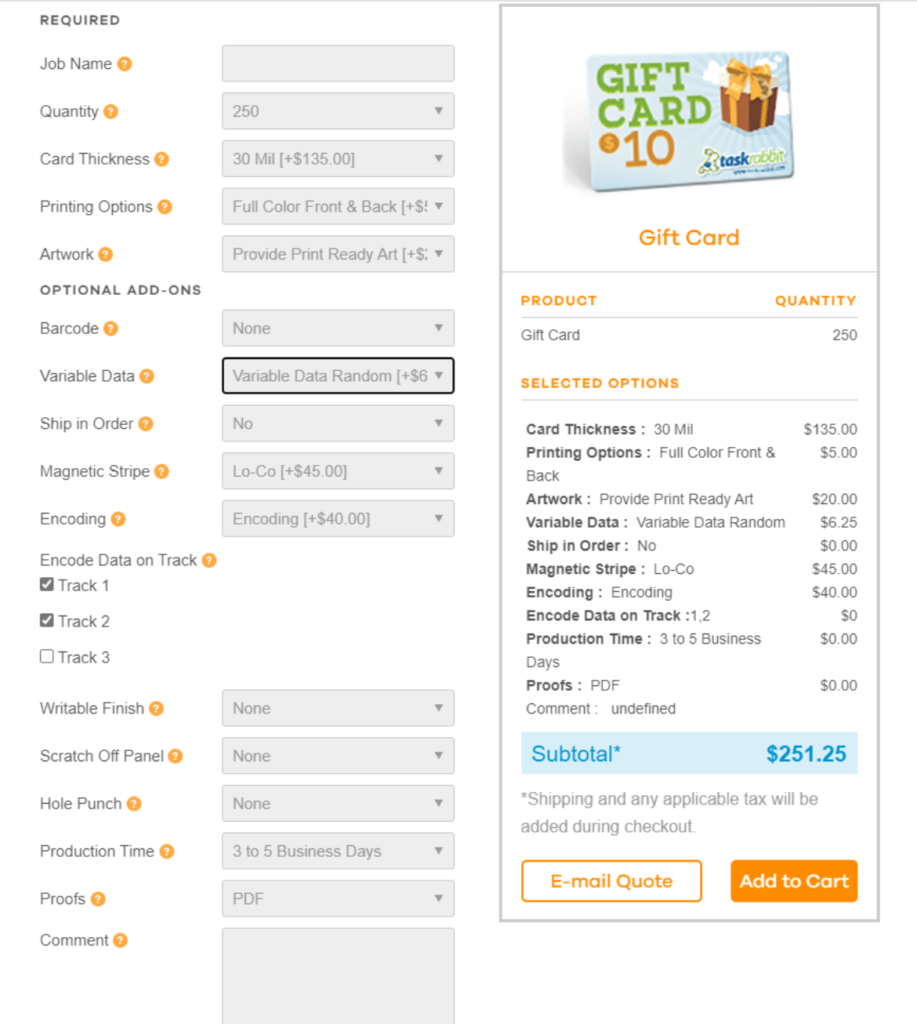
Remember: It’s important to have the actual gift card # printed somewhere (Front or Back) of the card so you can pull it up from your system.
Reminders:
- Determine how many cards you want to print off. DuraCard has a minimum order of 250 gift cards per print out.
- Chat / Email (support@punchey.com) with our support team to have your Gift Card File Generated.
- Punchey will send an email with the Gift Card File attached to you and Duracard (the gift card printer)
- You will need to upload your artwork and work with Duracard to create an account and print the cards.
IMPORTANT: When you order your cards, it’s important that the encoding is done properly. Track Data 1 and Track Data 2 need to be encoded into the magnetic stripe on the back of the card!
Want to learn more? Check out our YouTube Channel for helpful content and read more of our how-to guides!
Was this article helpful?
That’s Great!
Thank you for your feedback
Sorry! We couldn't be helpful
Thank you for your feedback
Feedback sent
We appreciate your effort and will try to fix the article