Overview
Punchey makes it easy to personalize your receipts and automate invoice payment alerts. Whether you’re building customer trust or keeping your team in the loop, this guide walks you through: - Customizing the receipt that your customers receive - Enabling invoice and e-invoice email notifications - Choosing which team members get notified when payments come in
How to Customize your Email Receipts
How to Customize Your Email Receipts (and Get Notified When Invoices Are Paid)
Punchey makes it easy to personalize your receipts and automate invoice payment alerts. Whether you're building customer trust or keeping your team informed, this guide walks you through:
- Customizing the receipt your customers receive
- Enabling invoice and e-invoice email notifications
- Choosing which team members get notified when payments come in
Where to Access These Settings
To manage your receipt and email settings:
- Log in to Punchey Live
- Navigate to:
Settings > Payments & E-Receipts or go directly to: https://live.punchey.com/company/payments_device
Customize Your Email Receipt
Click the "Go to Receipt Builder" button. You’ll see a real-time preview of what your customer will receive when they make a payment.
You can edit the following fields:
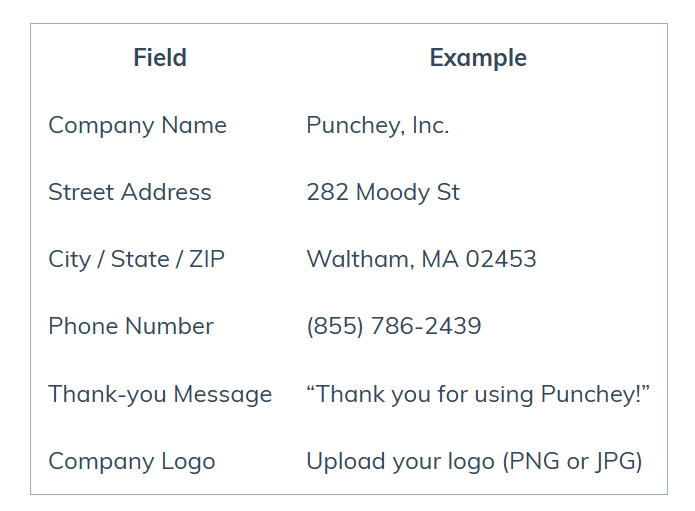
Tip: Use the thank-you message to include a personal note, slogan, or social media reminder.
Receipt Preview
After entering your details, your receipt will show:
Your business name, logo, and contact information
Transaction date and time
Authorization code and masked account number
Purchase amount
Custom thank-you message
Optional prompt for the customer to leave a review
Receipts can be emailed, printed at the time of sale, or sent via SMS.
Enable Invoice & E-Invoice Email Notifications
Punchey can send email alerts to internal team members when an invoice is paid in full. These notifications contain:
- Invoice number with a clickable link
- Date and time of payment
- Contact name, if available
- Payment amount
- Link to view or download the receipt
This helps your team stay informed about customer payments without needing to log in.
Choose Who Gets Notified
1. On the same Payments & E-Receipts settings page, check both boxes for:
- Invoices
- E-invoices
2. In the staff selector:
- Move desired team members from “Not Receiving Notifications” to “Receiving Notifications” using the arrows
- Click "Save"
Only users listed under "Receiving Notifications" will receive invoice payment alerts by email.
This is useful for shop owners, front desk staff, managers, or anyone who should stay on top of payments as they happen.
Best Practices
Use a clean, high-resolution logo for better display across devices
Maintain consistency between your receipt branding and other customer-facing communications
Customize your thank-you message to reinforce your brand voice
Revisit your notification list periodically to make sure it’s up to date
Consider using a shared email alias (like billing@yourdomain.com) if multiple team members need visibility
Need Help?
If you have questions or run into issues setting up your receipts or notifications, contact us at support@punchey.com. We're happy to assist.
Was this article helpful?
That’s Great!
Thank you for your feedback
Sorry! We couldn't be helpful
Thank you for your feedback
Feedback sent
We appreciate your effort and will try to fix the article