Overview
Deposits help lock in revenue and reduce no-shows by taking partial payment up front. This guide breaks the process into two separate moves:
Part 1 – Collect (Take) the Deposit:
This step collects money from the customer and stores it as unapplied credit—not tied to any invoice yet.
When to Use This:
Use it anytime you want to secure funds before the actual service or appointment takes place.
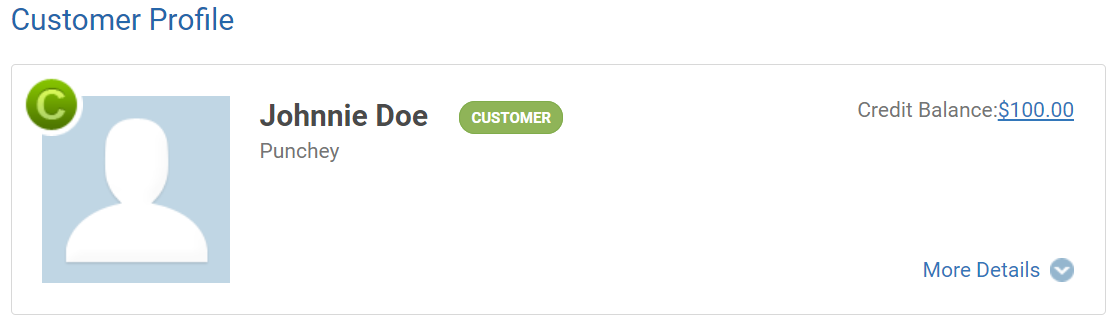
Four Ways to Collect a Deposit
- Let customers book (and pay) on their own
- Turn on Online Booking and require a deposit.
- Customers choose a time, enter card details, and you get an instant notification.
- No slot is held unless the payment succeeds.
Follow the instructions HERE to get it set-up.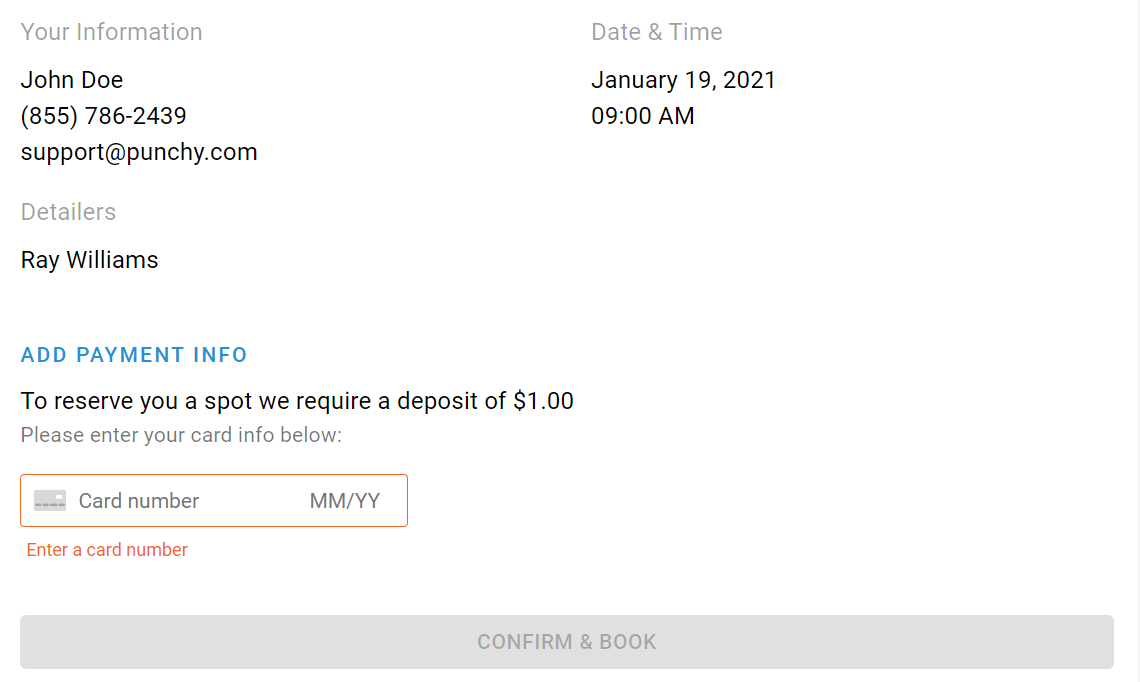
- Collect a deposit from the Daily Schedule
- Create the appointment.
- Hover over the booking’s Action icon.
- Click Collect deposit and complete the payment steps below.
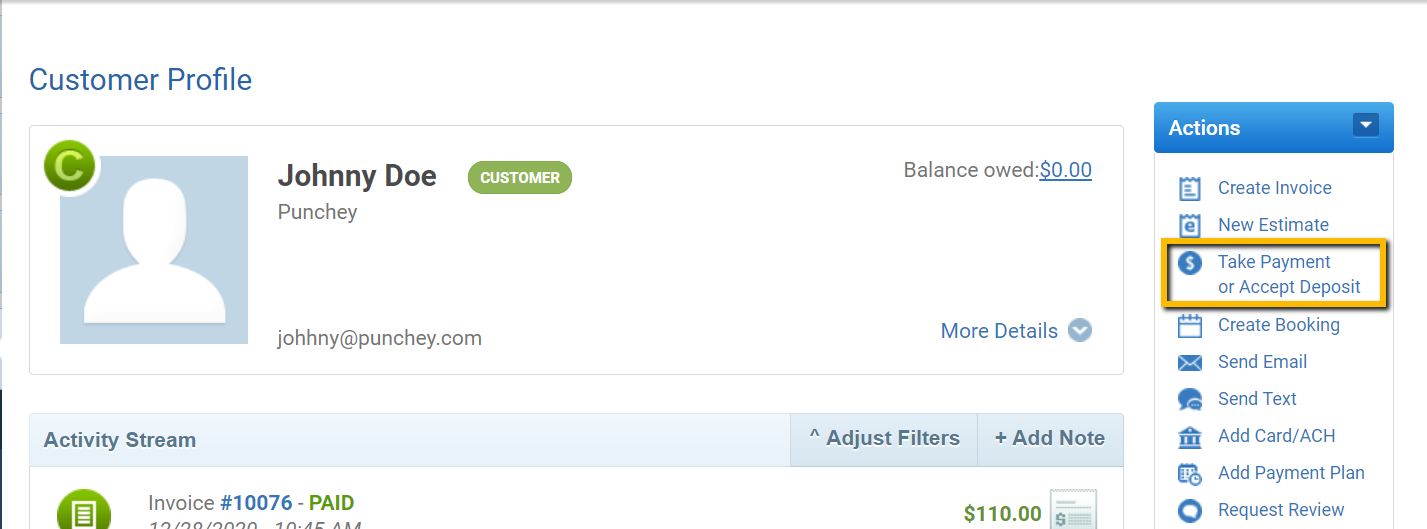
- Collect from a Customer Profile
- Open or create the customer.
- Click Take payment / Accept deposit.
- Follow the payment steps below.
- Collect from the Deposits page (bulk or ad-hoc)
- Navigate to Checkout › Accept deposit (also in Quick Menu › Accept payment). Search for the customer and continue.
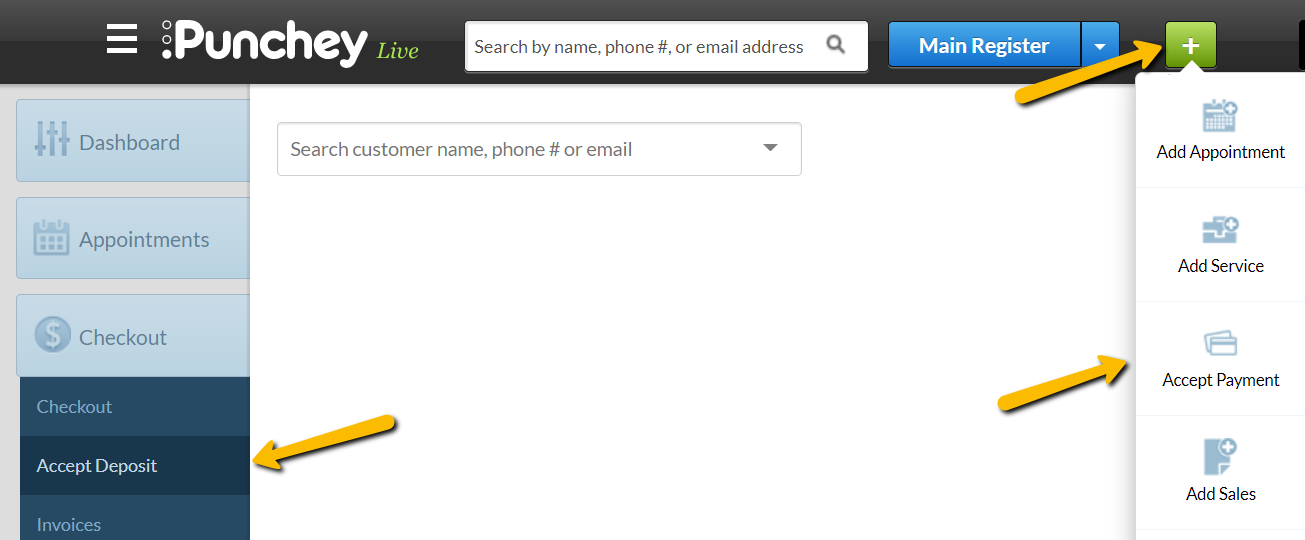
- Navigate to Checkout › Accept deposit (also in Quick Menu › Accept payment). Search for the customer and continue.
What Happens During Deposit Collection
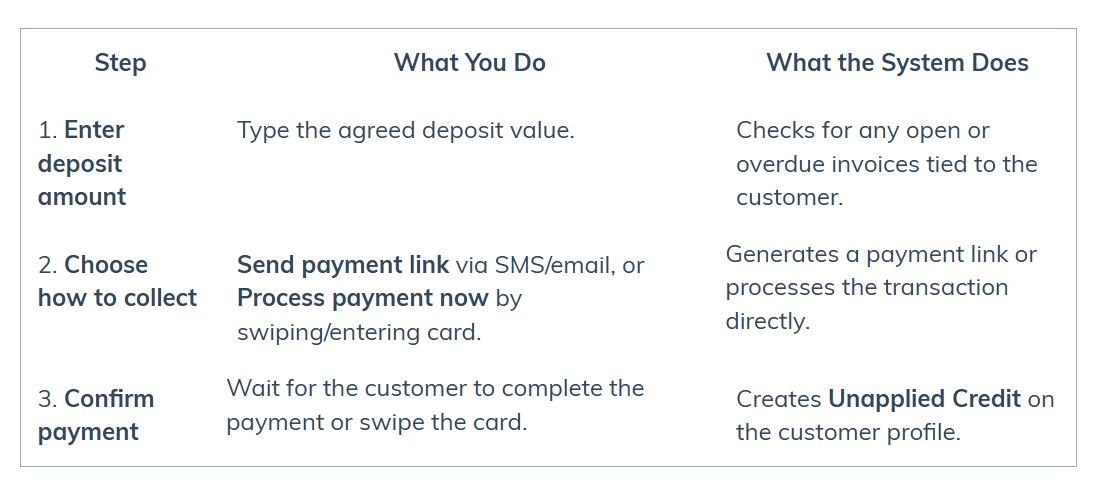 Important: A deposit is just stored money until you apply it. The system will NOT attach it to any invoice unless you manually do so later.
How to Process a Payment Now – This is what you will want to choose if you are accepting payment in person or over the phone. Continue to Step 2.
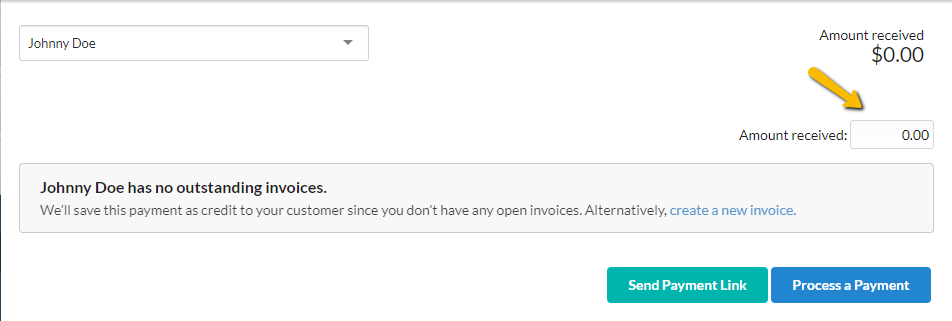
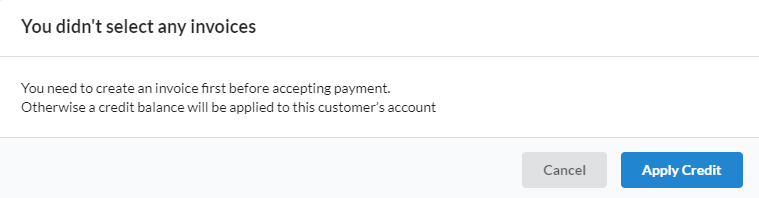
Step 2: Click Apply Credit on the pop-up window
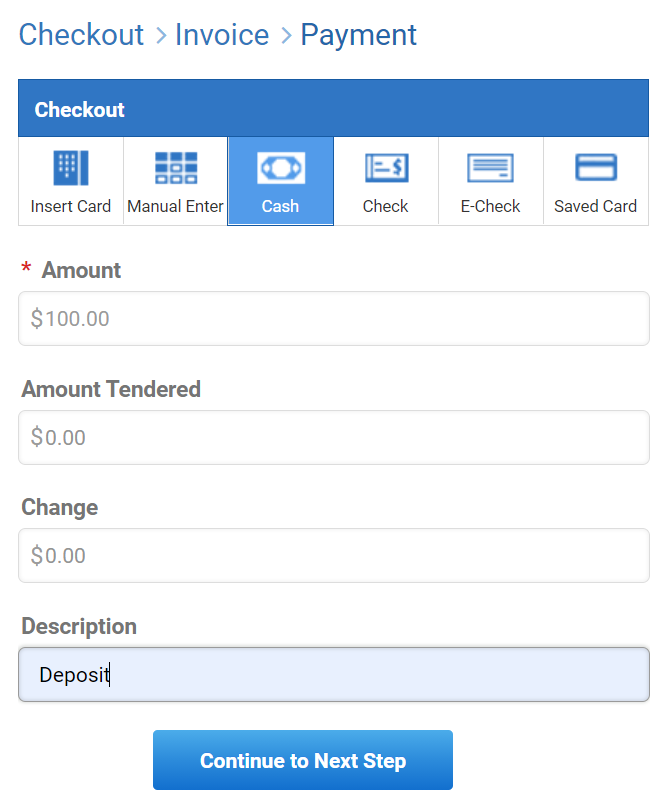
Step 3: Choose the payment method, and enter a description titled: Deposit
Part 2 – Apply the Deposit to an Invoice:
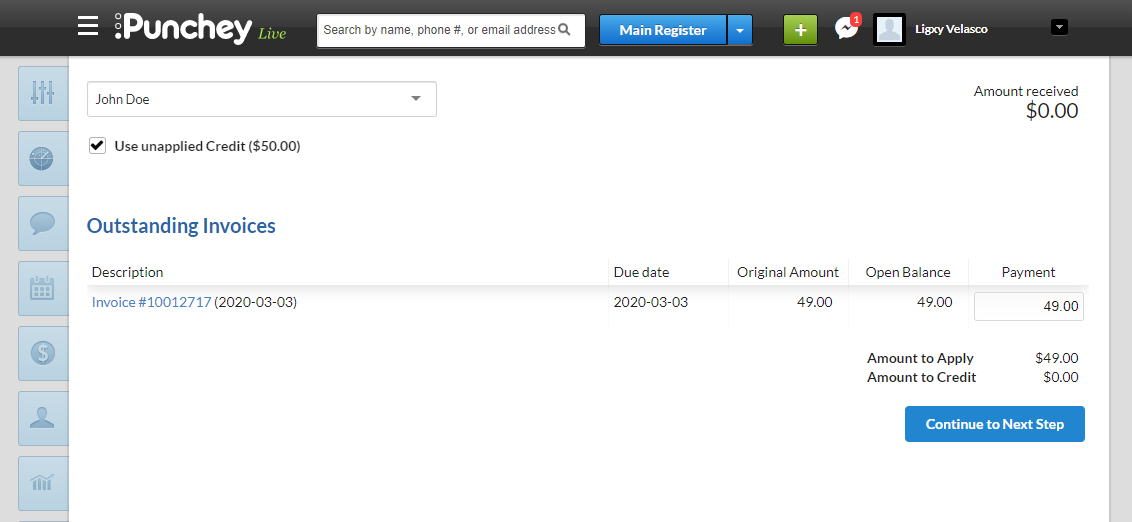
Apply stored credit when you’re ready to close out the job, sale, or appointment.
- Open the invoice or appointment checkout screen.
- Click Accept payment.
- Select Use unapplied credit.
• The deposit is auto-applied.
• Remaining balance (if any) is displayed. - Collect the remainder via card, cash, or other method
Helpful Notes and Edge Cases:
Link won’t send via SMS? Make sure your business phone number is text-enabled. If not, copy and email the link.
Already have credit on file? You can apply any unapplied balance during checkout regardless of its source.
No-shows? Deposits remain as credit unless refunded or applied. You decide how to handle them.
Avoiding double-booking: Online Booking blocks the slot until the deposit is paid.
Need reporting? Use Reports ➞ Deposits to track collected and applied credits.
Want to learn more? Check out our YouTube Channel for helpful content and read more of our how-to guides!
Was this article helpful?
That’s Great!
Thank you for your feedback
Sorry! We couldn't be helpful
Thank you for your feedback
Feedback sent
We appreciate your effort and will try to fix the article