Creating an Invoice with the Punchey Mobile App
There are two easy ways to create an invoice using the Punchey Mobile App. You can generate an invoice directly from a completed booking, or create one manually from the Invoice section.
Option 1: Create an Invoice from a Completed Booking (Recommended)
This is the fastest and most efficient workflow once an appointment has been completed.
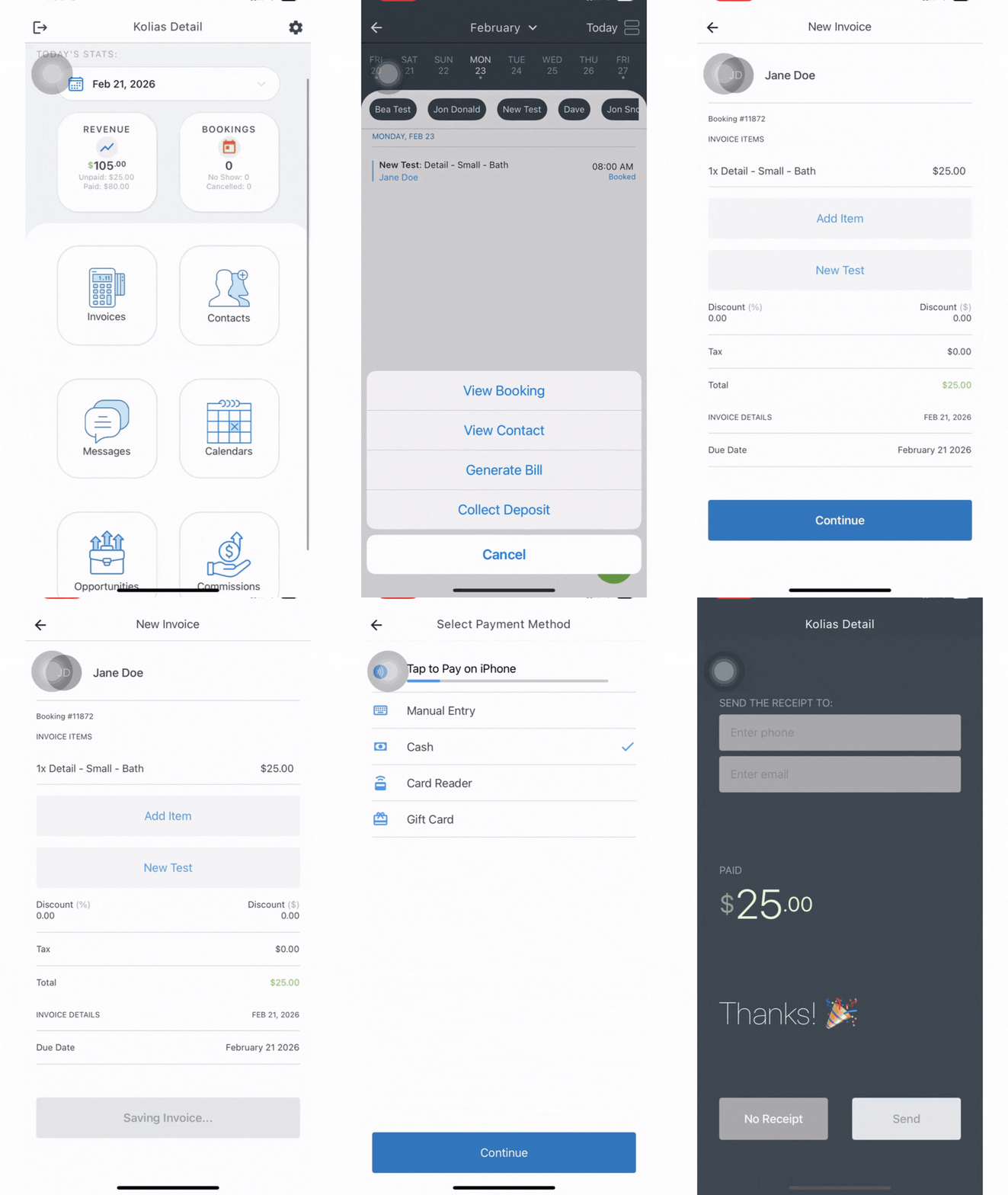
Navigate to the Bookings section of the app.
Tap on the recently completed booking.
A menu will appear. Select Generate Bill.
An invoice will automatically be created. Review the details and make any necessary edits.
Select Continue.
Tap Accept Payment.
Choose your preferred Payment Method and continue.
Enter any required payment details.
Once processed, your invoice payment is complete.
Option 2: Create an Invoice Manually
You can also create an invoice directly from the Invoice section at any time.
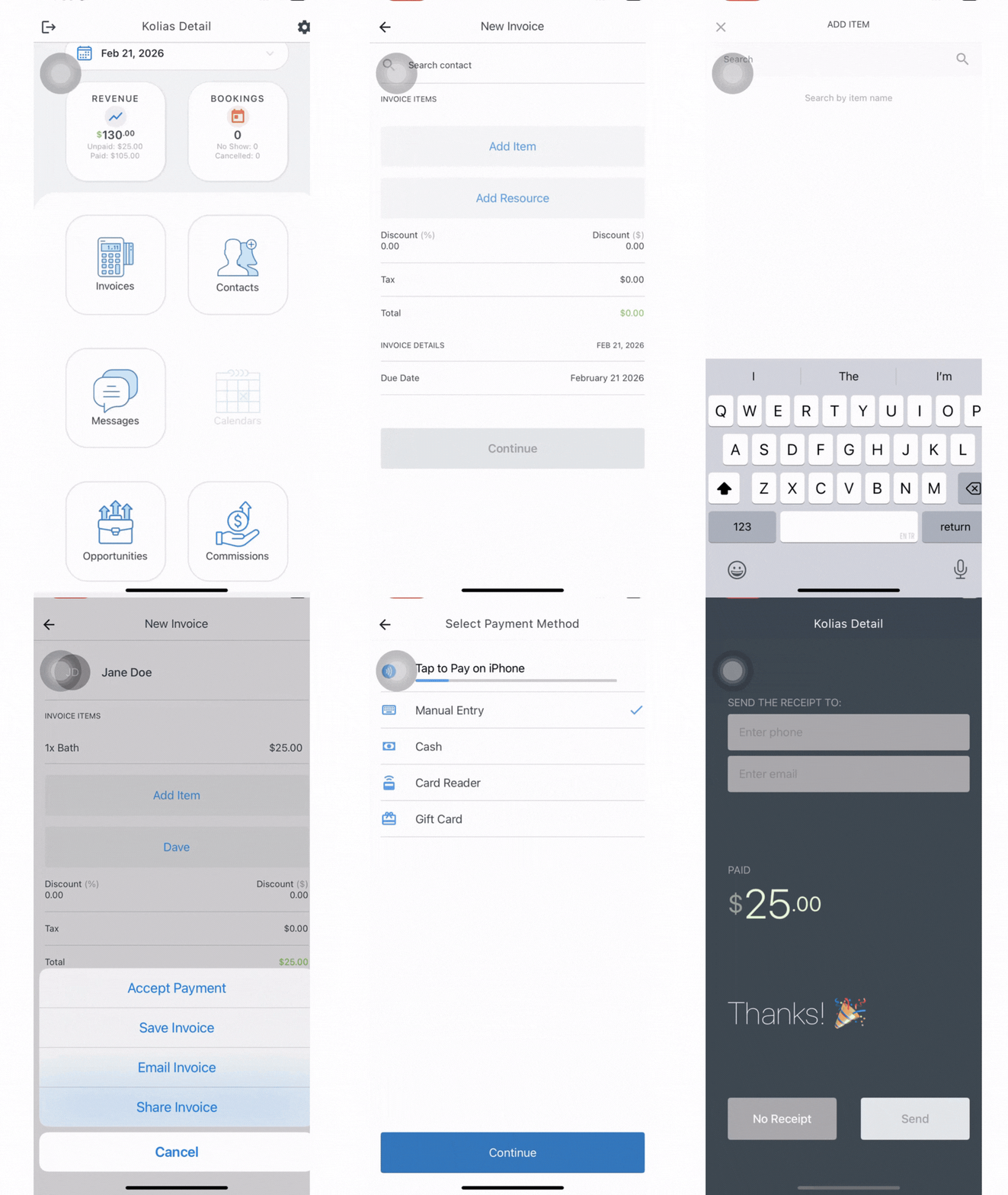
Navigate to the Invoice section of the app.
Tap the green + button in the bottom right corner of your screen.
Enter the invoice details, including:
Contact Name
Add Item or Service
Add Resource
Optional Discounts
After entering all details, select Continue.
In the pop-up menu, choose Accept Payment.
Select your preferred Payment Method and continue.
Enter any required payment details.
Once processed, your invoice payment is complete.
Important Reminder
Please refer to this guide for the apps you should use based on your device.
Was this article helpful?
That’s Great!
Thank you for your feedback
Sorry! We couldn't be helpful
Thank you for your feedback
Feedback sent
We appreciate your effort and will try to fix the article