There are several reasons why you may need to add an additional register. For example, your business may assign registers by employee and you’ve hired someone new, or you may have opened a new location that requires its own register. Whatever the reason, the steps below will guide you through setting up a new register.
Step-by-Step Instructions
Access Settings
Click the Settings tab and go to Software Setup.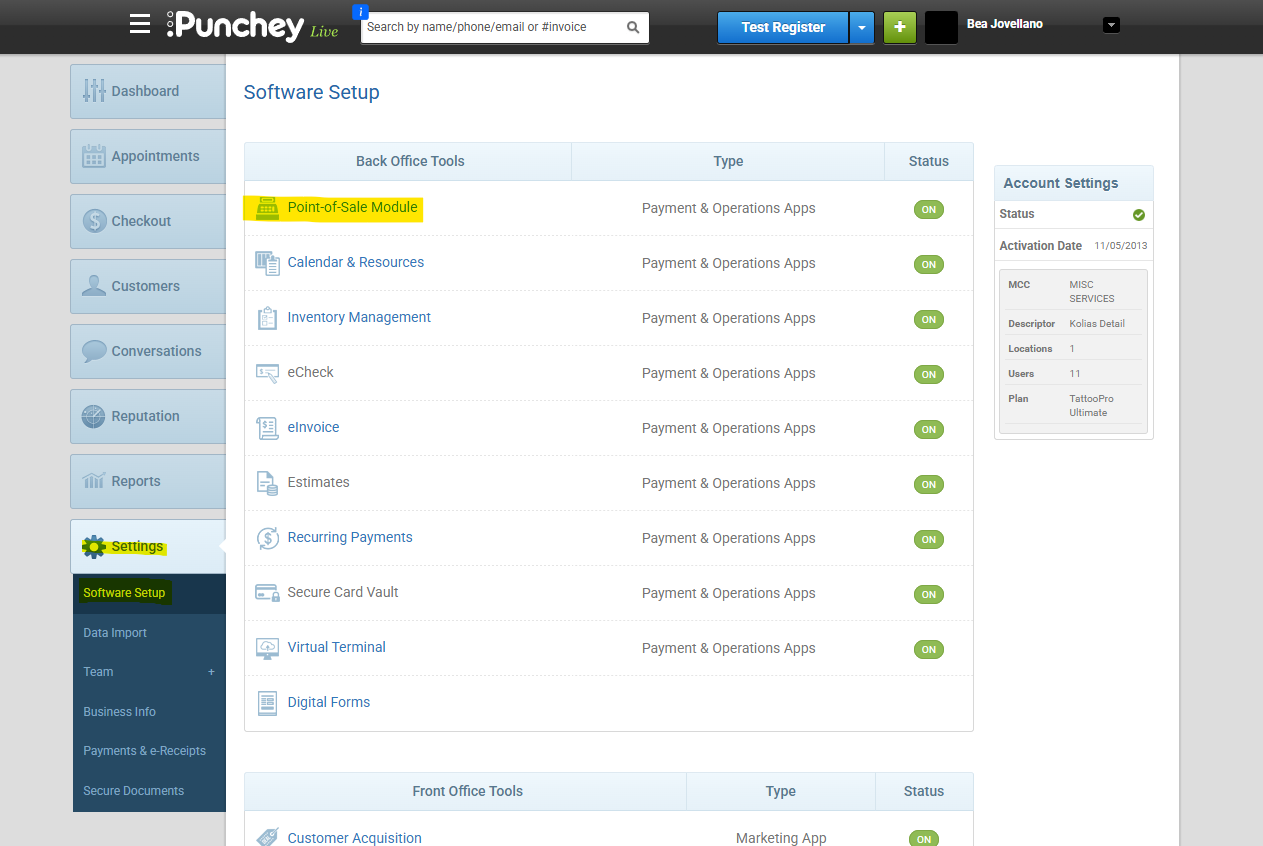
Open the Registers Page
Go to Settings > Software Setup > Point of Sale Module > Registers (Edit).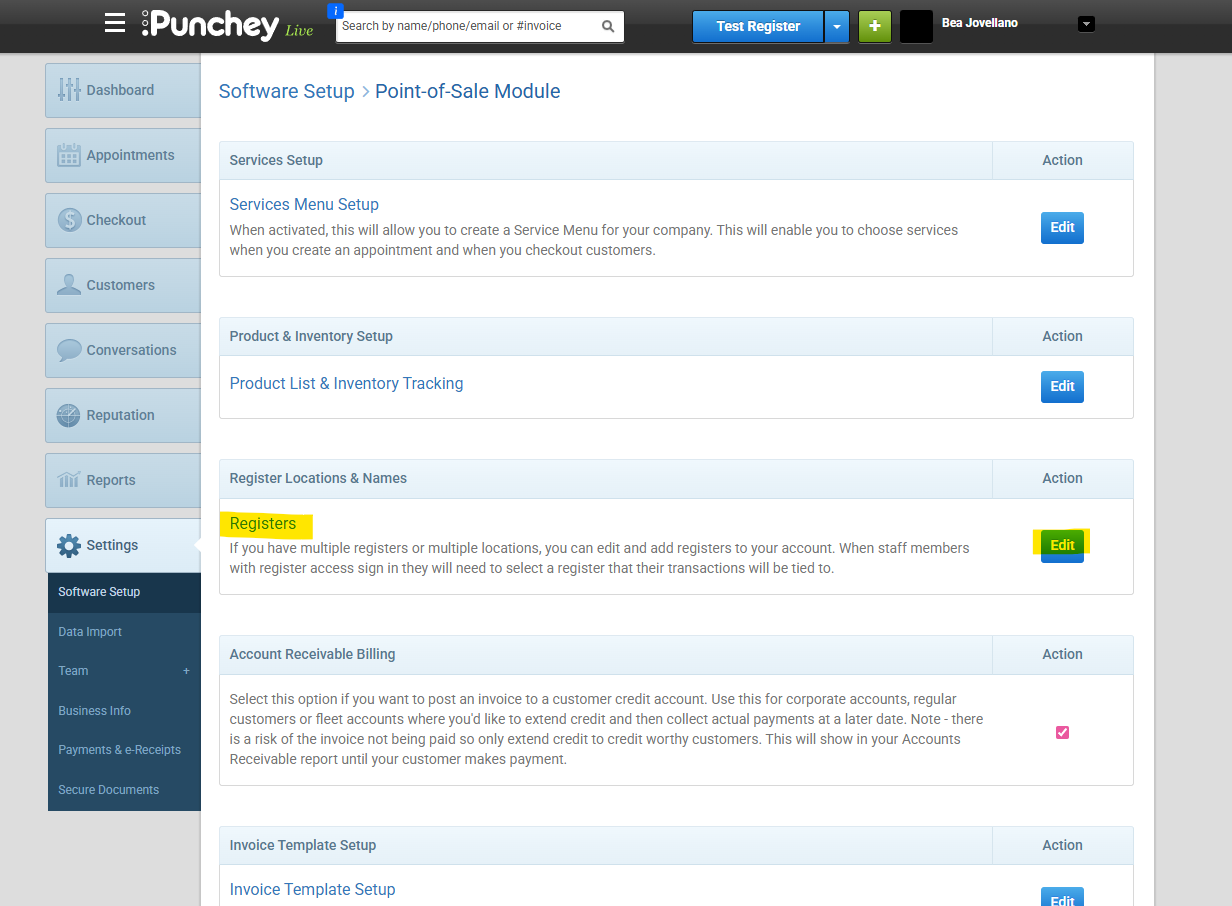
Add a Register
Click the blue + Add a Register button.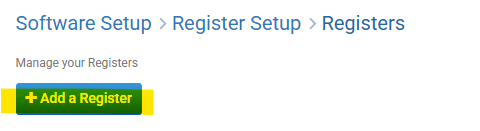
Enter Register Details
Fill out the required fields, including:Name of the register
Description
Merchant Terminal: select Adyen (Default)
Tip Settings
Choose your preferred Interface (Desktop + Tablet, Desktop only, or Tablet only)
Save Your Changes
Once all information has been entered, click Save to complete the setup.
Editing Register Settings
You can update existing register details under:
Settings > Software Setup > Point of Sale Module > Registers (Edit)
From here, you can modify the register’s name, description, and interface preferences as needed.
Was this article helpful?
That’s Great!
Thank you for your feedback
Sorry! We couldn't be helpful
Thank you for your feedback
Feedback sent
We appreciate your effort and will try to fix the article