Learn how to accept payment through mobile devices! This is a key tool to getting the most out of your SignPad or phone!
Setting up your iPad
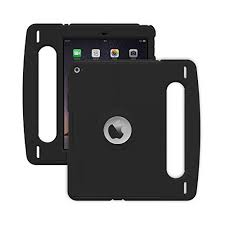
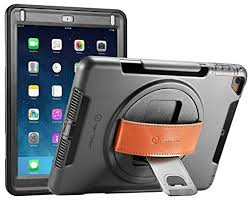
We recommend using an iPad mini or tablet with a strong industrial case. This is to ensure it does not get damaged throughout the busy day.
This is best for your mobile vans, outdoor check-ins, or whenever else you’d use your iPad.
You can find cases that fit this model here.
Cases like the ones below offer your versatility and strength:
Accepting Payment
First, we’ll need to set up our mobile register for tip and signature collection at the point of sale. You can use any register you’d like for this.
Go to “Software Setup” and then “Point of Sale Module.” From here, navigate to “Registers” and click “Edit” next to your chosen register.
You’ll then be brought to this screen:
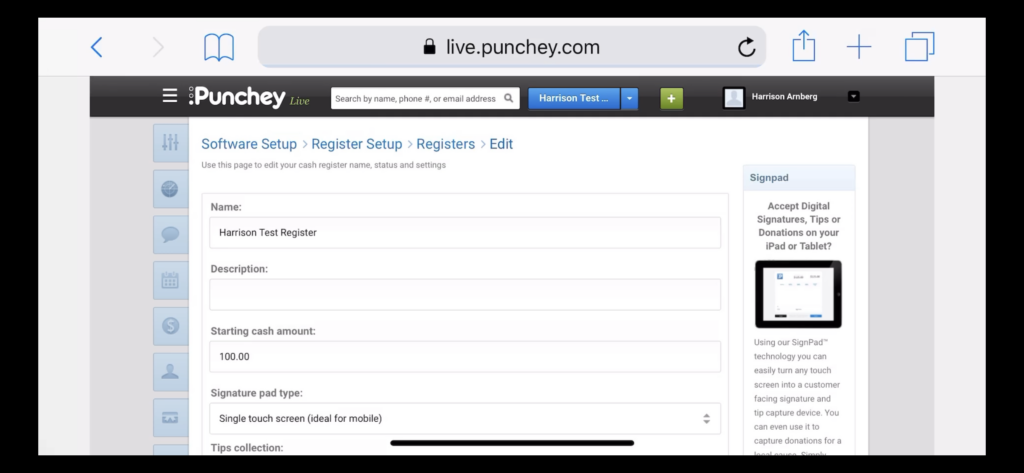
Under “Signature pad type” select “Single touch screen (ideal for mobile) from the dropdown menu.”
Now, let’s checkout a customer to see how this works.
Go to your checkout page:
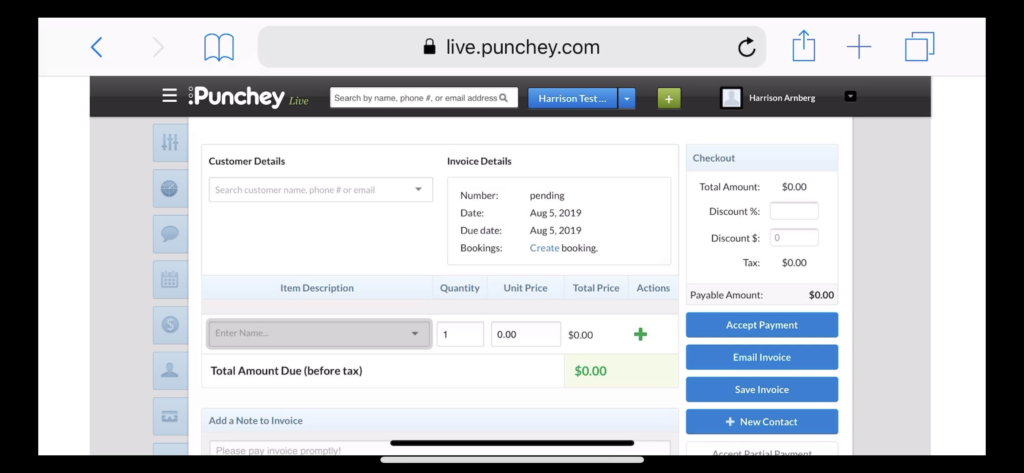
Select “Accept Payment” to be routed to this screen:
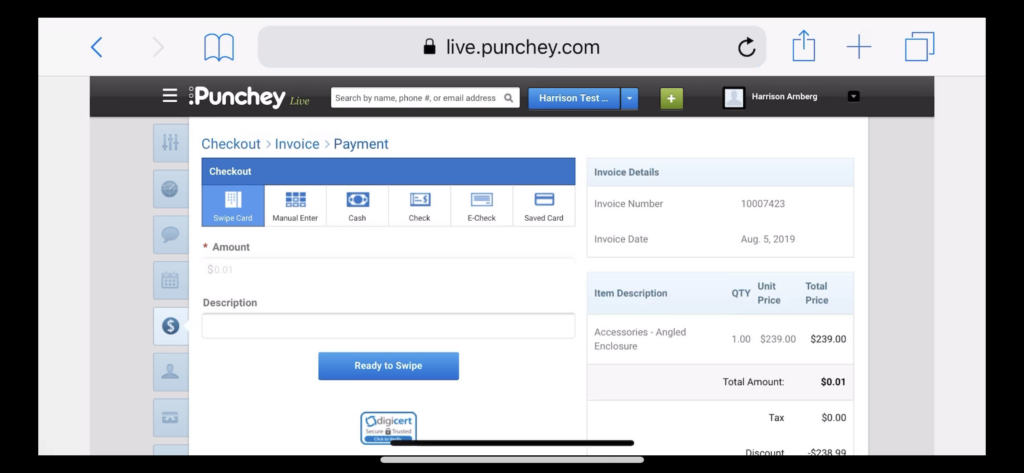
Go to “Manual Enter.” When you click on any of the fields, you will have the option the scan the card, as shown in the image below.
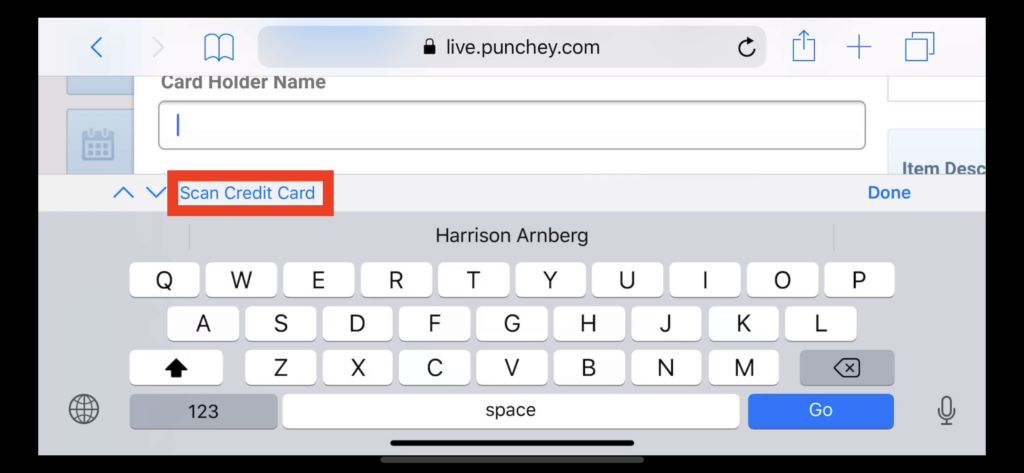
From here, just hold the card under the camera and it will scan. Select “Charge Card” after the information fields are automatically updated.
Now your tipping screen will appear right on your mobile device as shown:
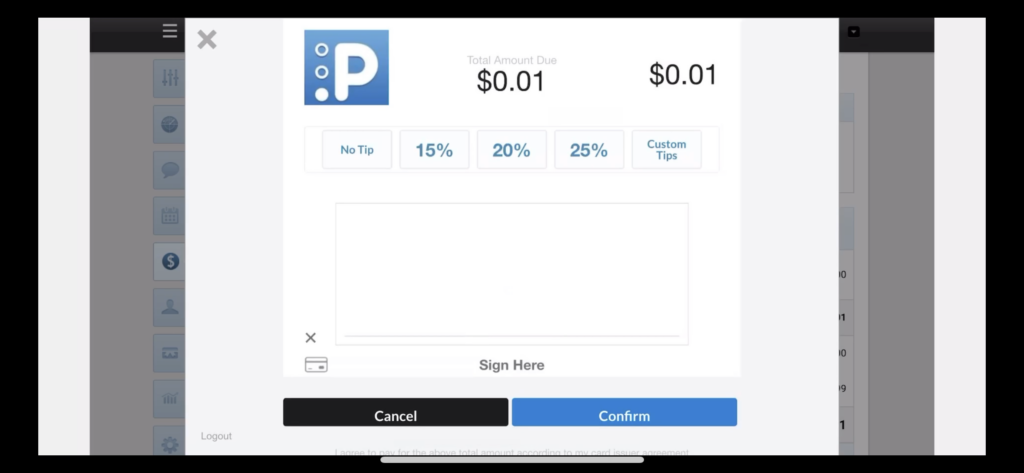
And you’re done!
Want to learn more? Check out our YouTube Channel for helpful content and read more of our how-to guides!
Was this article helpful?
That’s Great!
Thank you for your feedback
Sorry! We couldn't be helpful
Thank you for your feedback
Feedback sent
We appreciate your effort and will try to fix the article