Overview
If your NYC1 card reader isn’t behaving as expected, don’t worry—most issues can be resolved quickly with a few simple steps. This guide will walk you through what to check, what common issues mean, and how to get your reader back up and running.
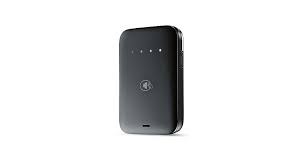
Common Issues You Might Notice
You may be experiencing one of the following:
The card reader briefly starts a payment, then returns to the idle screen
A payment amount doesn’t appear on the reader when you try to charge a customer
The reader doesn’t seem to connect to your device
These symptoms usually point to a connection or setup issue and are often easy to fix.
Step 1: Check for Payment Errors
Before you begin troubleshooting—and again after each step—try running a payment and see if the issue still occurs.
What this means for you:
If the problem disappears after a step below, you’re good to go. If you continue to see an error message that doesn’t make sense, you may need additional help. Keep note of what the message says so Support can assist you faster.
Step 2: Reset the Connection (Most Common Fix)
A fresh Bluetooth connection solves the majority of NYC1 reader issues.
Unpair the Reader from Your Device
On iPhone or iPad
Open Settings
Tap Bluetooth
Find your NYC1 reader in the list
Tap the ⓘ icon next to it
Select Forget This Device
On Android
Open Settings
Tap Connected Devices or Bluetooth
Find your NYC1 reader
Tap the gear/settings icon
Select Unpair or Forget
Reinstall the App
Once the reader is unpaired:
Delete the POS app from your device
Restart your device
Reinstall the latest version from the App Store or Google Play
Open the app and follow the on-screen steps to pair your NYC1 reader again
What this means for you:
This clears out any old or corrupted connection data and ensures your app and reader are starting fresh together.
Step 3: Double-Check the Basics
Before testing again, make sure the following are true:
Your device is fully up to date with the latest system software
Your device has a security lock enabled (PIN, password, Face ID, etc.)
“Developer mode” is turned off on your device
The card reader is charged
Press the power button once to check the battery level
Step 4: Restart the Card Reader
If issues persist, try restarting the reader itself:
Press and hold the power button for 20–30 seconds
Release when you hear one high-pitched beep
This performs a full reset of the reader.
Step 5: Check for Updates
Your card reader works best when it’s running the latest firmware.
If an update is available, follow the on-screen instructions in the app to complete it
Keep the reader nearby and charged during the update process
Still Having Trouble?
If you’ve followed all the steps above and the issue continues:
Take note of what you’re seeing on screen
Write down any error messages exactly as shown
Contact Support and let them know what steps you’ve already tried
What this means for you:
Sharing this information helps Support diagnose the issue faster and get you back to taking payments with minimal downtime.
Was this article helpful?
That’s Great!
Thank you for your feedback
Sorry! We couldn't be helpful
Thank you for your feedback
Feedback sent
We appreciate your effort and will try to fix the article