How to Set or Edit Employee Schedules
Overview
Employee schedules determine when team members are available to accept appointments in your calendar. By setting up accurate schedules, you ensure that bookings are only made during an employee’s working hours.
Punchey allows employee schedules to be managed through Team Calendars. You can update a schedule for a specific week or set a recurring schedule for ongoing availability.
This guide will walk you through how to set or update an employee’s schedule.
Why Employee Schedules Matter
Maintaining accurate employee schedules helps your team stay organized and prevents booking issues.
Updating schedules helps you:
Prevent appointments from being booked outside working hours
Make sure employees only appear available when they are actually working
Keep calendar availability accurate for staff and admins
Reduce scheduling conflicts and customer frustration
This is especially important when an employee has a temporary schedule change for one week or a regular recurring availability.
How to Set or Edit an Employee Schedule
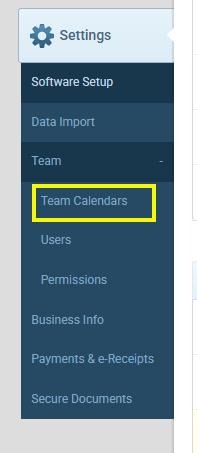
Step 1: Open the Calendar Settings
Log in to your Punchey account.
Click Settings.
Select Team.
Click Team Calendars.
This section allows you to manage scheduling and availability for your team members.
Step 2: Access the Schedule Settings
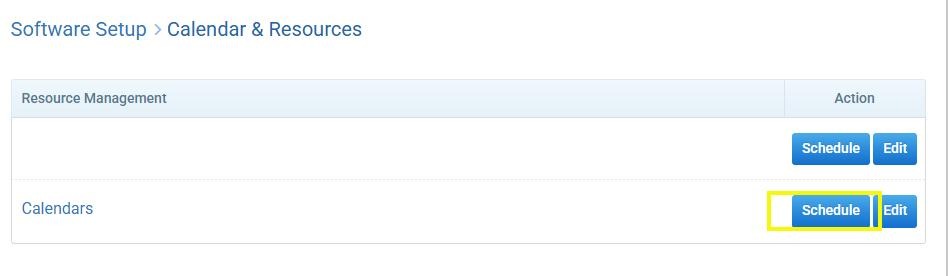
In Team Calendars, locate the Schedule option.
Click Schedule to manage employee availability.
Step 3: Select the Employee (Resource)
Click Select Resource.
Choose the employee whose schedule you want to set or update.
This will load the schedule associated with the selected employee.
Step 4: Choose the Type of Schedule Update
After selecting the employee, choose how you want to apply the schedule:
Select Edit Selected Week if you want to update the schedule for a specific week only
Select Recurring if you want to apply the schedule as an ongoing recurring schedule
Use Edit Selected Week for temporary changes, such as shift adjustments, special hours, or one-time availability updates.
Use Recurring for regular weekly schedules that should continue moving forward.
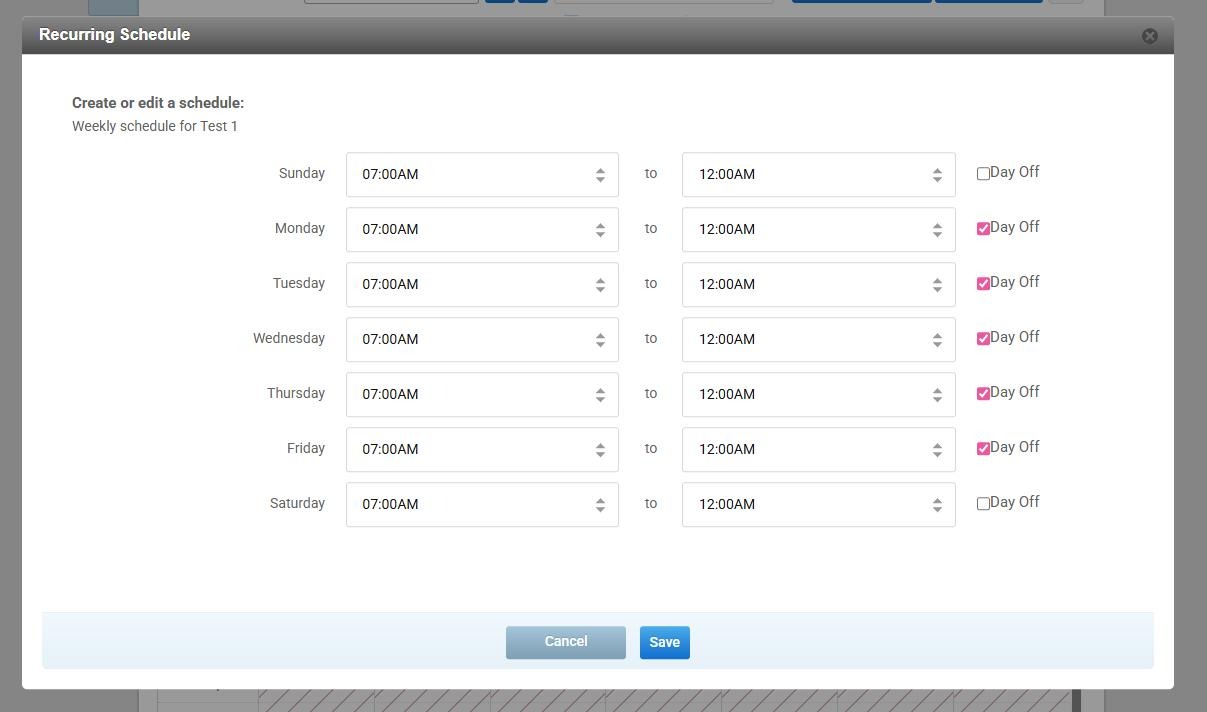
Step 5: Edit the Employee Schedule
Once the employee is selected, you can update their availability.
You can configure:
• The days the employee is available
• The start and end time of each workday
• Specific working hours for different days
Make the necessary changes based on the employee’s working schedule.
Step 6: Save the Schedule
After adjusting the schedule:
Review the working hours you entered.
Click Save to apply the changes.
Once saved, the employee’s updated schedule will be reflected in the booking calendar.
Step 7: Verify the Updated Schedule
To confirm your changes:
Go back to Settings → Team → Team Calendars.
Click Schedule.
Select Resources.
Choose the employee whose schedule you updated.
Review the schedule to confirm that the changes have been applied.
Best Practices
Use Edit Selected Week for temporary or one-time schedule changes
Use Recurring for regular weekly availability
Review schedules after saving to make sure the correct hours were applied
Keep employee schedules updated to avoid booking conflicts
Was this article helpful?
That’s Great!
Thank you for your feedback
Sorry! We couldn't be helpful
Thank you for your feedback
Feedback sent
We appreciate your effort and will try to fix the article