Overview
The Barcode Scanner Guide explains how to effectively use a barcode scanner within the Punchey POS system—from adding items to your inventory to quickly ringing them up at checkout. Scanning barcodes streamlines item lookup and speeds up the checkout process, reducing manual entry errors and improving overall transaction efficiency.
How to:
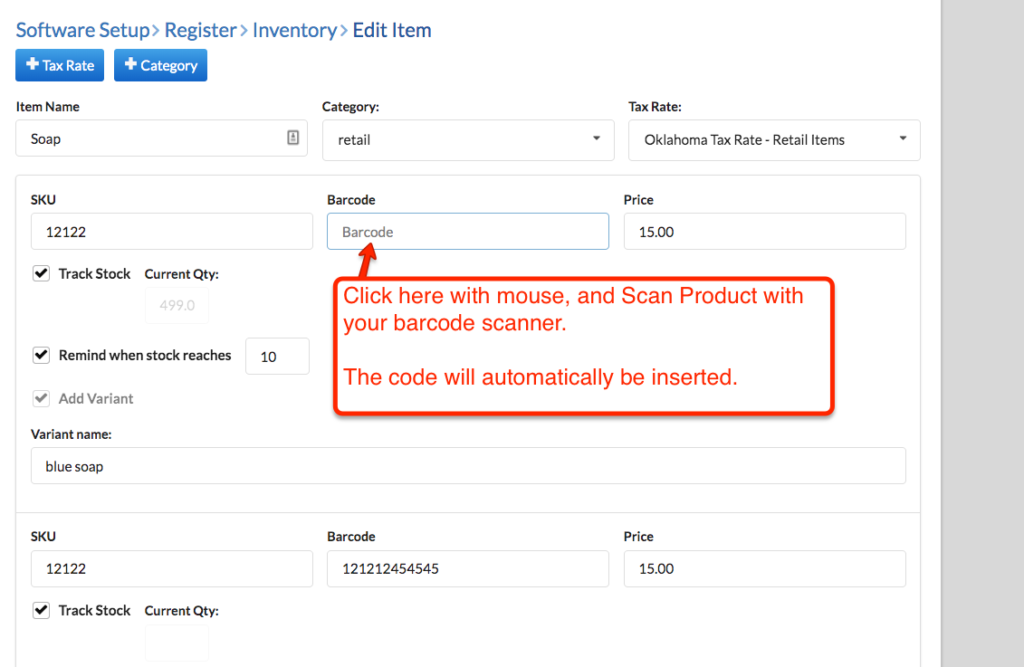
Step 1: Add the products to inventory with your barcode scanner
- Go to your inventory management module in your account.
- Now add item details, and when you get to the barcode section, simply click in the barcode field and then scan the product’s bar code:
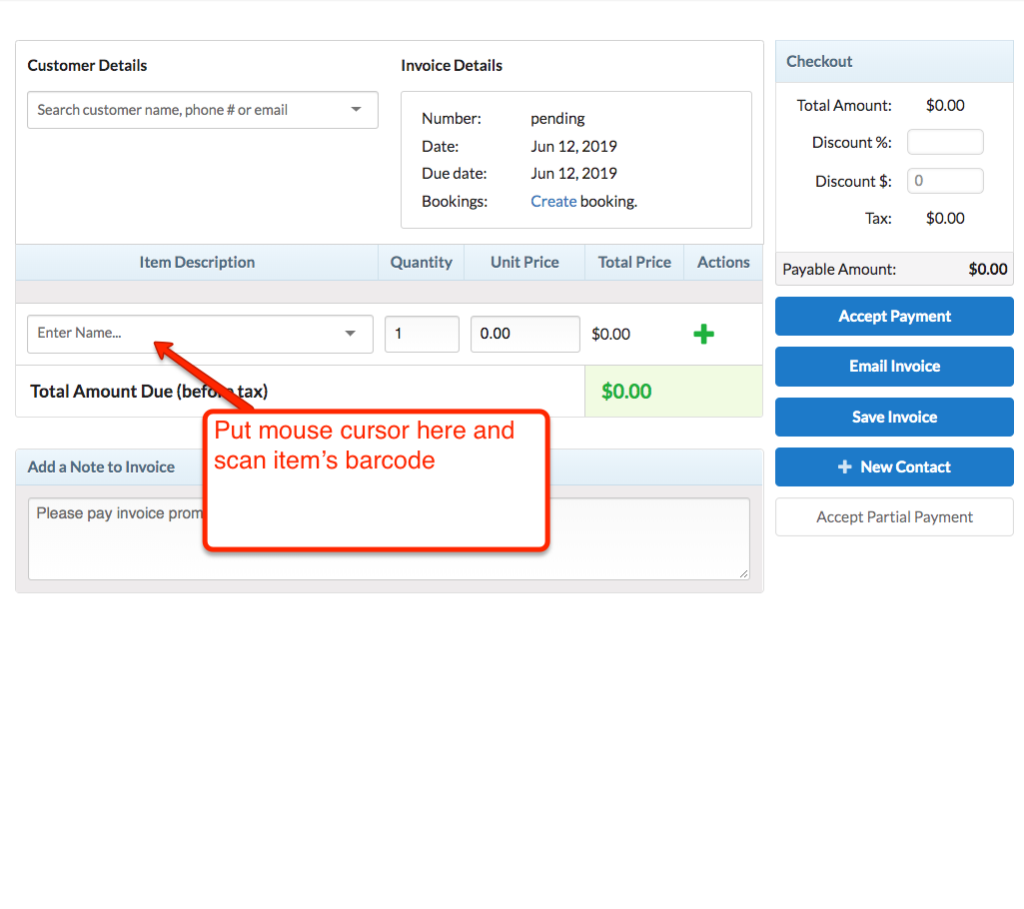
Step 2: Using your barcode scanner at checkout.
- When a customer brings an item from your store to your checkout counter, simply scan the item’s bar code to add it to the pending invoice. See below:
Why It Matters
Using a barcode scanner with Punchey helps you save time, reduce errors, and keep your inventory accurate. Whether you’re managing stock or speeding up checkout, the scanner ensures a smoother, more reliable experience for both your team and your customers.
Was this article helpful?
That’s Great!
Thank you for your feedback
Sorry! We couldn't be helpful
Thank you for your feedback
Feedback sent
We appreciate your effort and will try to fix the article